 Feature Friday: Qliksense_theme
By using the Activate Datasource Theme Action in Mail & Deploy you define your data source in which to activate the theme and you use an expression that evaluates to the code of the theme to activate.
Happy #FeatureFriday!
The visual aspect of a dashboard in your Qlik® application is very important. It helps to facilitate the adoption of your Qlik® dashboard by your users and decision-makers. The way you design your visualization may have a serious impact on the reader’s interpretation of the data and insights.
There are a number of different ways you can use to improve the aesthetics and functionality of your Qlik® apps. Anyways, you should always consider your audience and what data you want to highlight.
Qlik Sense® theme, for example, can save you a lot of time and effort when creating a new application. It lets you customize your whole dashboard including colours of the background and individual chart elements, colour palettes and colour gradients, font sizes and font colour. You can create customized applications that perfectly align with your company’s corporate identity. The users can benefit from a better look and feel for the dashboards and feel more familiar with a homogeneous style.
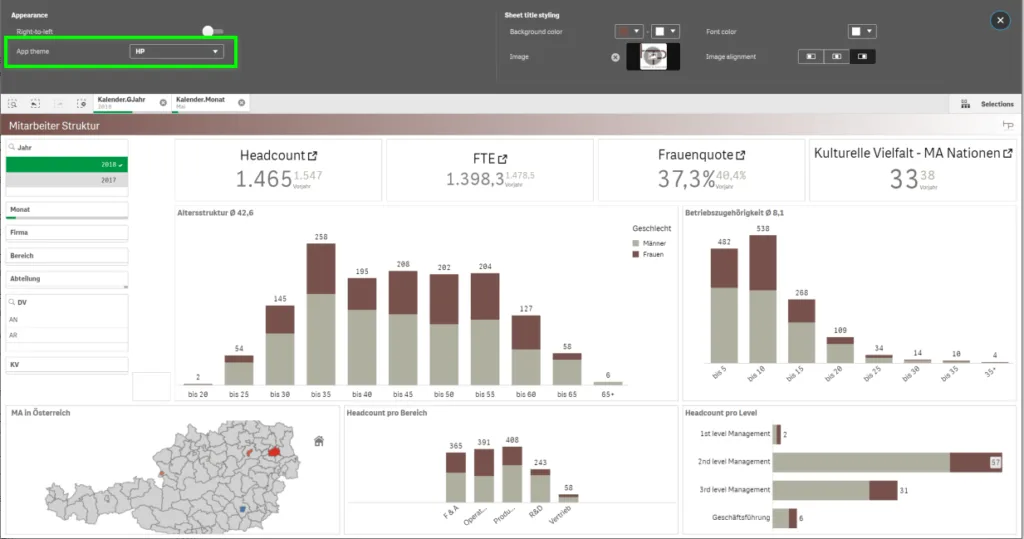 Qlik Sense Themes appQlik Sense® theme
Mail & Deploy has the following feature in order to reflect the mentioned benefits of Qlik Sense® themes for a more uniform design and colouring of your dashboards also in your reports:
 Run Application Icon Activate Qlik Sense Theme
The Activate Datasource Theme Action allows you to activate a theme of a data source to influence the presentation of subsequent chart report elements and sheet report elements.
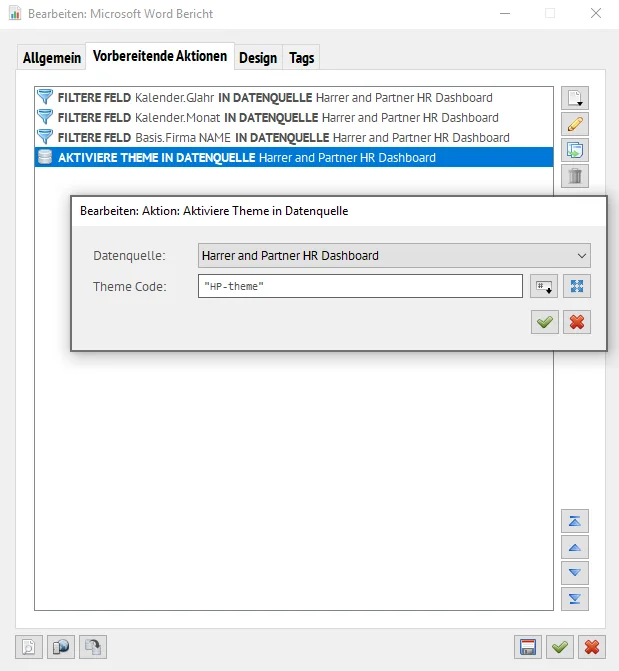 Qlik Sense Theme activationActivate Datasource Theme Action
By using the Activate Datasource Theme Action in Mail & Deploy you define your data source in which to activate the theme and you use an expression that evaluates to the code of the theme to activate.
Themes are currently only supported for Qlik Sense data sources.
You can find out the theme code for a given theme by following these steps:
- Open the single configurator in the dev hub of your Qlik Sense installation.
- Select any app.
- Select any worksheet or chart within the app.
- In the settings, choose the theme you want to find the code for in the General tab.
- The theme code can be found in the resulting URL of the sheet or chart:…demo.qvf&sheet=jgxeqZ& theme=card&opt=nointeraction…
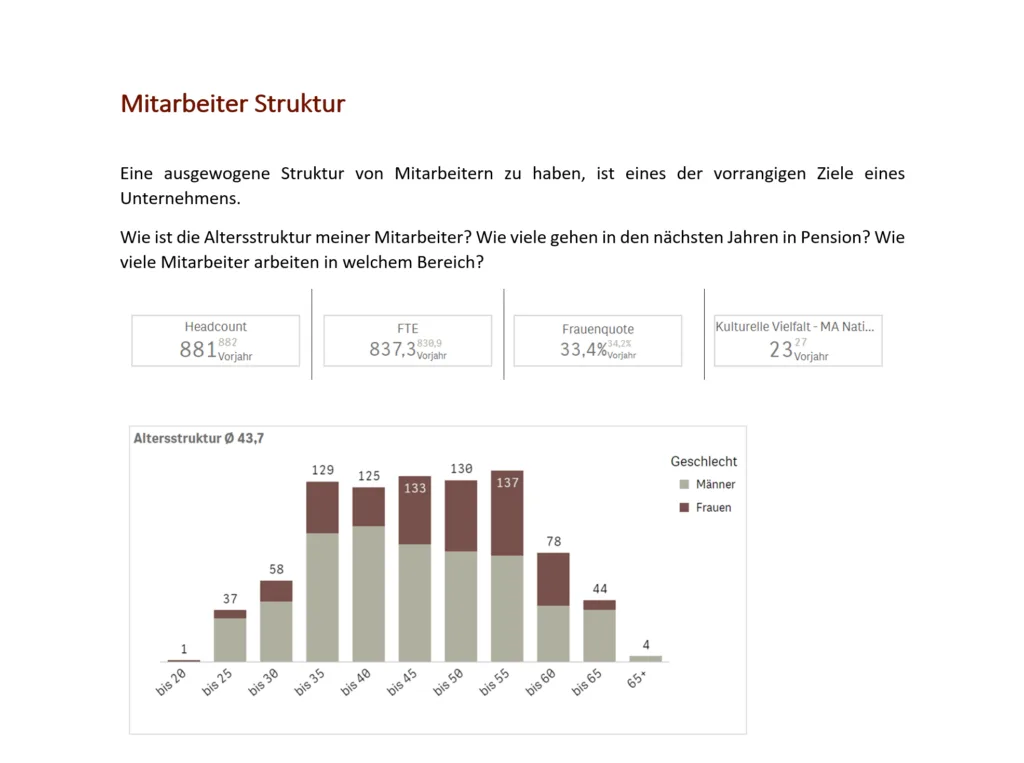 Customized Report by Mail & DeployQlik Sense® theme in your report
Mail & Deploy perfectly reflects the design of your Qlik® dashboard visualization with Qlik Sense® Theme in your reports. In this way, also your reports out of Qlik® can adapt to the look and feel of your company, respecting corporate guidelines and increasing user engagement.
There is still more to discover! Sign up for our monthly Newsletter or experience Mail & Deploy for yourself! Sign up for your free 30-day Mail & Deploy trial.