
How Mail & Deploy works with Qlik®
Mail & Deploy sits beside your Qlik environment rather than inside it. It opens your apps the way a user would, applies the filters you define, renders the objects you selected into your own template, and sends the result where it needs to go - on a schedule or when the data says so.
Below is the actual sequence, in the order you would set it up. It takes most teams an afternoon for the first report and minutes for each one after that.
Connect to your Qlik environment
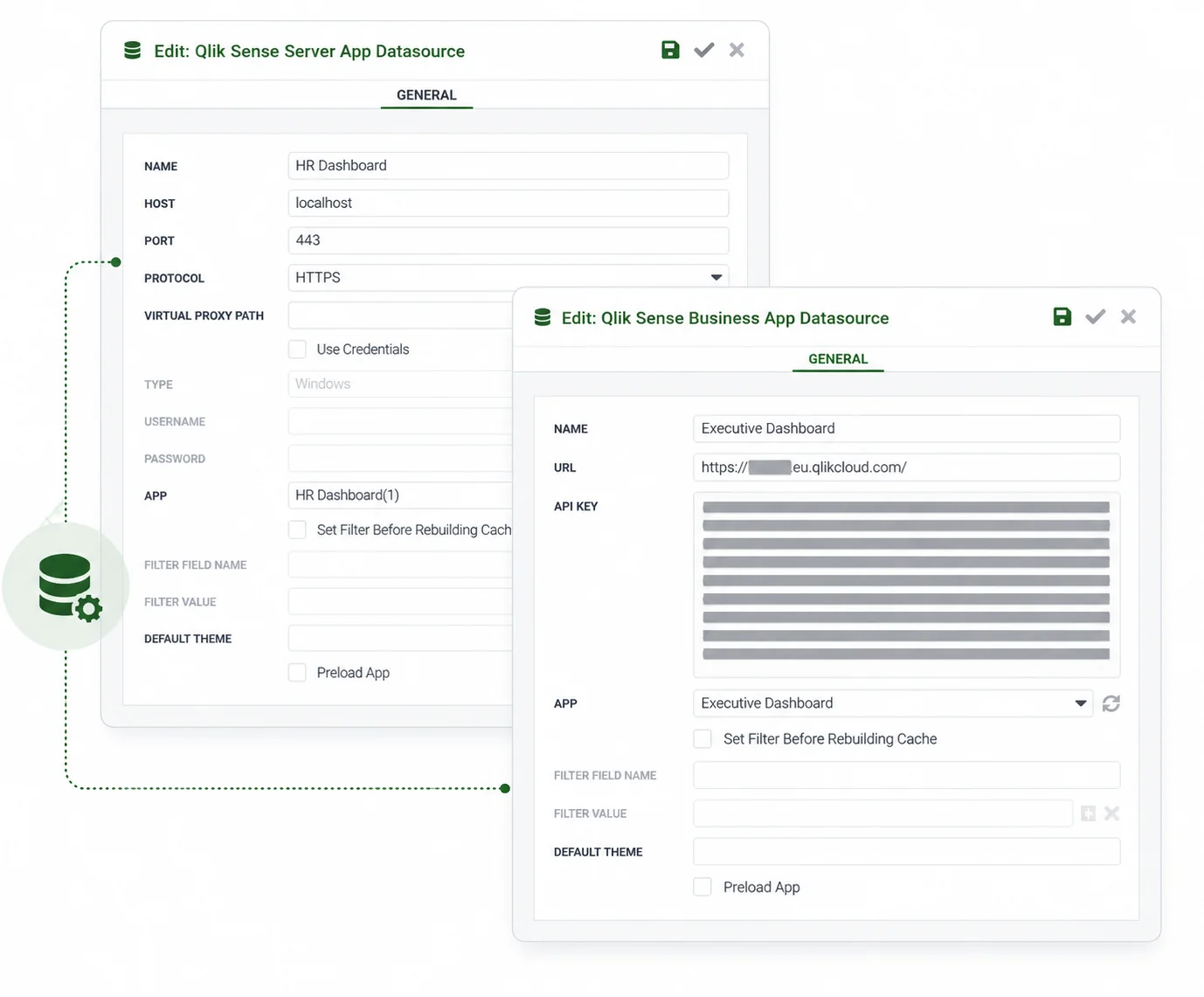
Mail & Deploy connects to your Qlik environment. We recommend creating a dedicated Qlik Sense® user with access only to the apps you report on - the reporting layer then sees exactly what that user sees.
Mail & Deploy keeps a cache of what the datasource contains - fields, variables, visualisations and embedded reports - so designing a report doesn't hit your Qlik environment on every step. The cache is rebuilt when the app structure changes, not when the data changes.
Details for administrators
Mail & Deploy connects to your Qlik Cloud tenant with an API key. We recommend creating a dedicated Qlik Sense® user with access only to the apps you report on, and generating the key from that account - the reporting layer then sees exactly what that user sees. Where section access has to carry through to the report, a datasource can instead use impersonation via JWT.
Worth knowing: API keys in Qlik Cloud expire. If the key Mail & Deploy uses runs out, the connection stops and scheduled executions fail. Raising the maximum token lifetime in the Qlik management console avoids this.
Three authentication types are available: the Mail & Deploy service account, a custom Windows account, or impersonation via JWT where section access has to carry through. You supply host, port, protocol and the virtual proxy path. Mail & Deploy can run on the same machine as Qlik Sense or on its own, as long as it can reach the Qlik proxy.
If the Mail & Deploy service account exists as an NTNAME section access user in the QlikView® document, no further configuration is needed. Alternatively, add a custom USERID entry to the document's section access list.
Multiple environments can be connected at once. A single report can draw from more than one of them, which matters during a migration away from NPrinting when some apps have moved and some haven't.
Design the report template
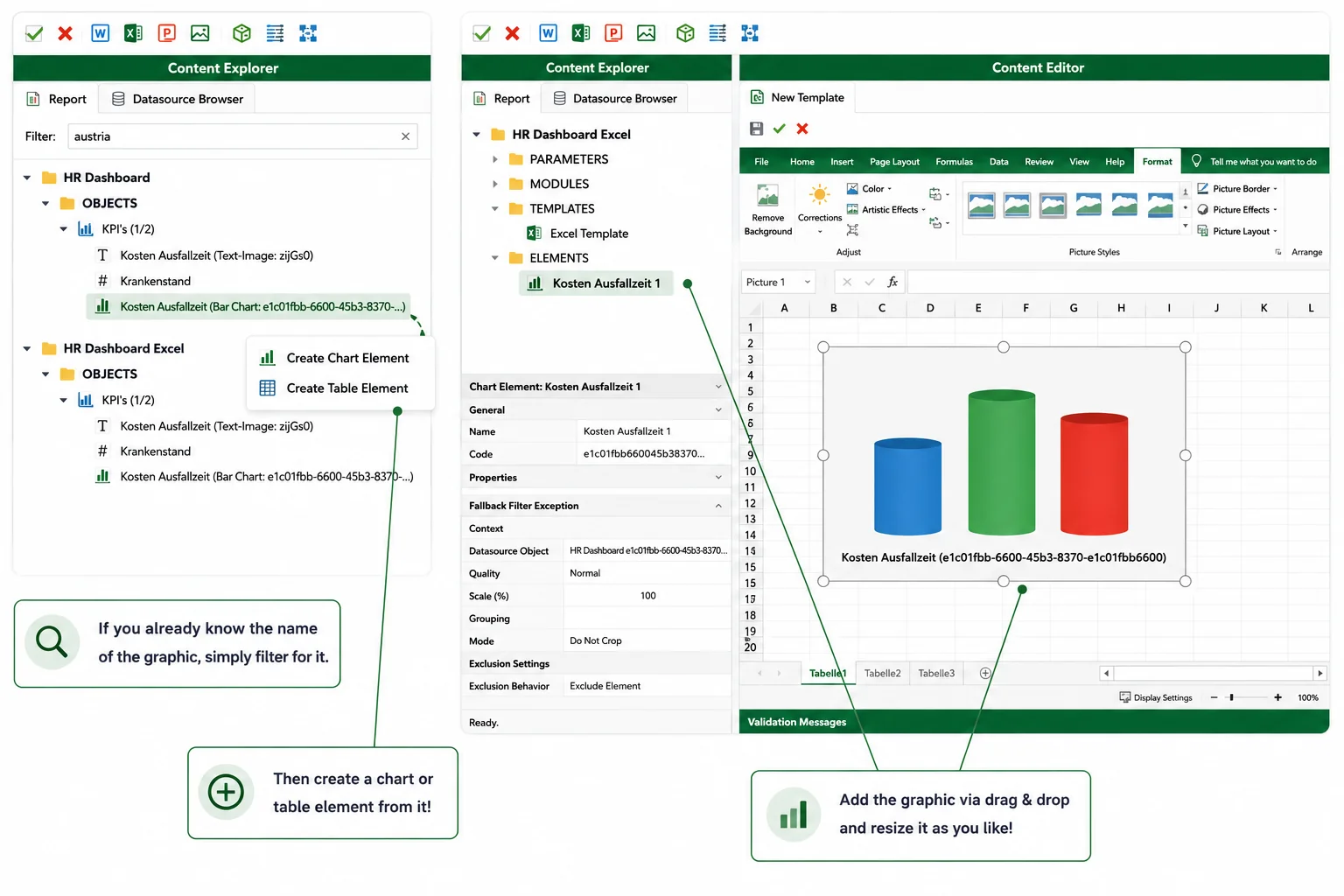
Templates are built in the tools your recipients already use - Excel, Word, PowerPoint, HTML - or in the built-in designer. You place Qlik objects into the layout: charts, tables, KPIs, individual field values. The surrounding document stays yours, including existing formulas, corporate styling and any structure a regulator expects to see.
An Excel template keeps calculating after delivery. That is the difference between a report and an export: the recipient can keep working in the file rather than starting a new one.
From here on, nothing depends on where the data came from. The template designer, the schedule and the delivery log look the same whether the source is Qlik®, Power BI or a database.
Each additional data source is licensed separately.
Decide who gets which numbers
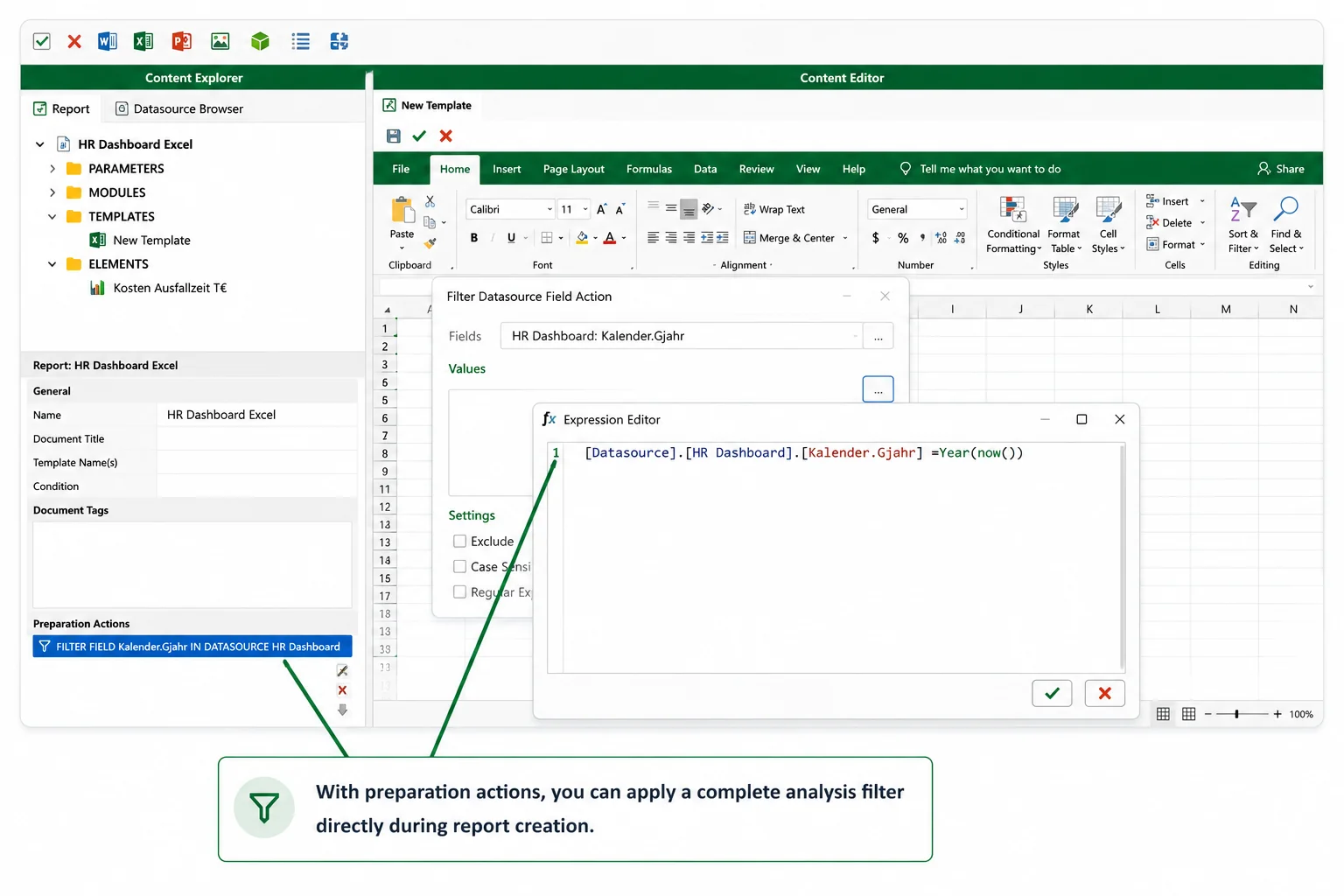
This is the step that removes the manual work. Instead of one report per recipient group, you define one template and one rule for how it varies.
You pick a Qlik field to burst on - region, cost centre, account manager, customer. Mail & Deploy generates one report per distinct value of that field, applies the matching filter to every object in the template, and pairs each output with the right recipient. One template, one execution plan, four hundred different documents.
How section access fits in
Two setups, and which one you need depends on where the report ends up.
For bursting - a report generated per region, cost centre or account manager and delivered by email, SharePoint or any other channel - Mail & Deploy connects with the service account, and the split comes from the field you burst on rather than from section access. Where a QlikView document uses section access, the service account needs ADMIN rights in the access list so it can read the full set before splitting it.
Details for administrators
For self-service, where a user requests a report themselves, the datasource must use impersonation: Mail & Deploy authenticates via JWT as that user, and section access applies as it would in the app.
Impersonation via JWT is required for self-service. Without it, Mail & Deploy connects with the service account rather than as the requesting user: that user's section access restrictions do not apply, and the output can contain more than they would see in the app. Configure impersonation via JWT on the datasource before enabling self-service.
Schedule it, or trigger it from the reload script
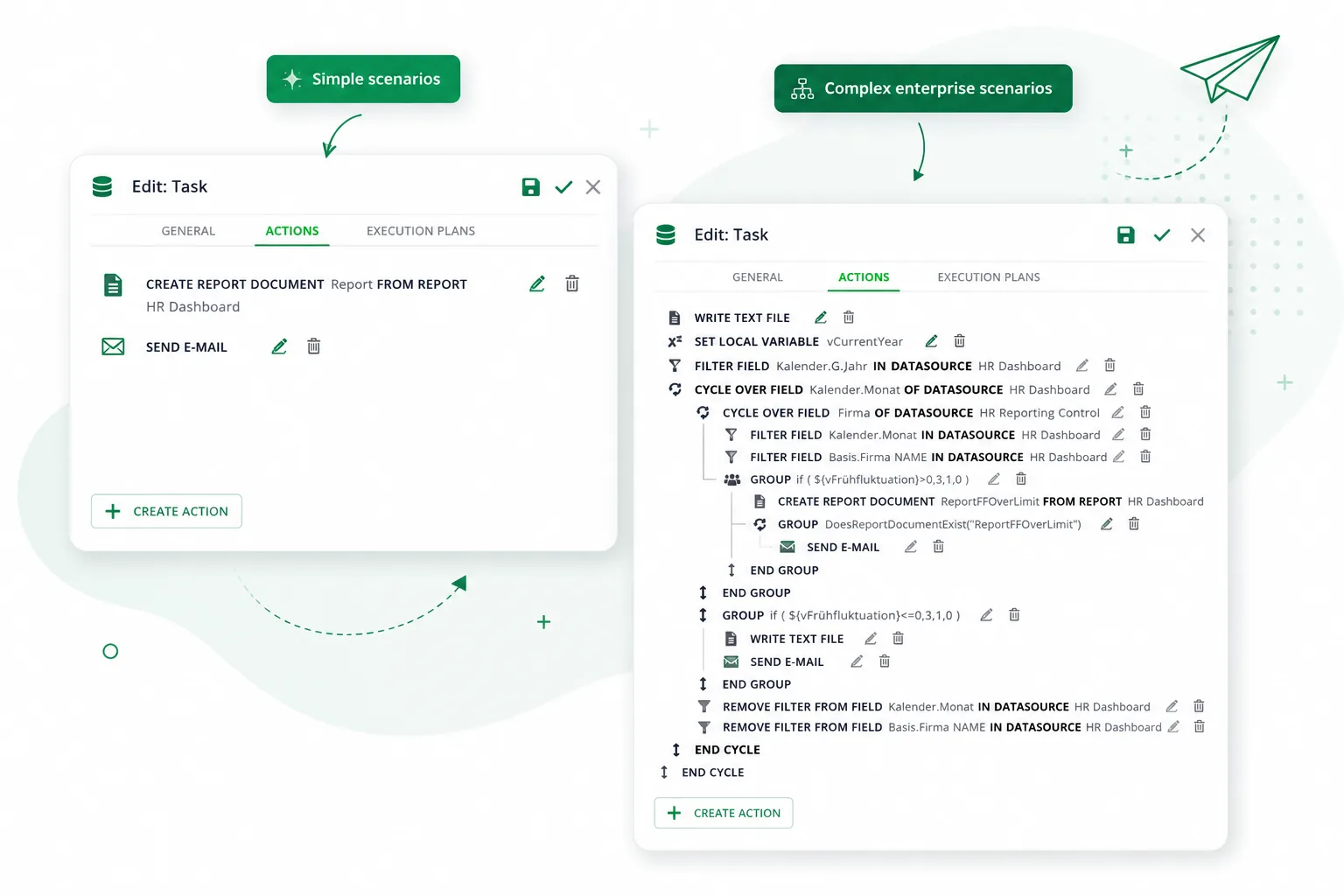
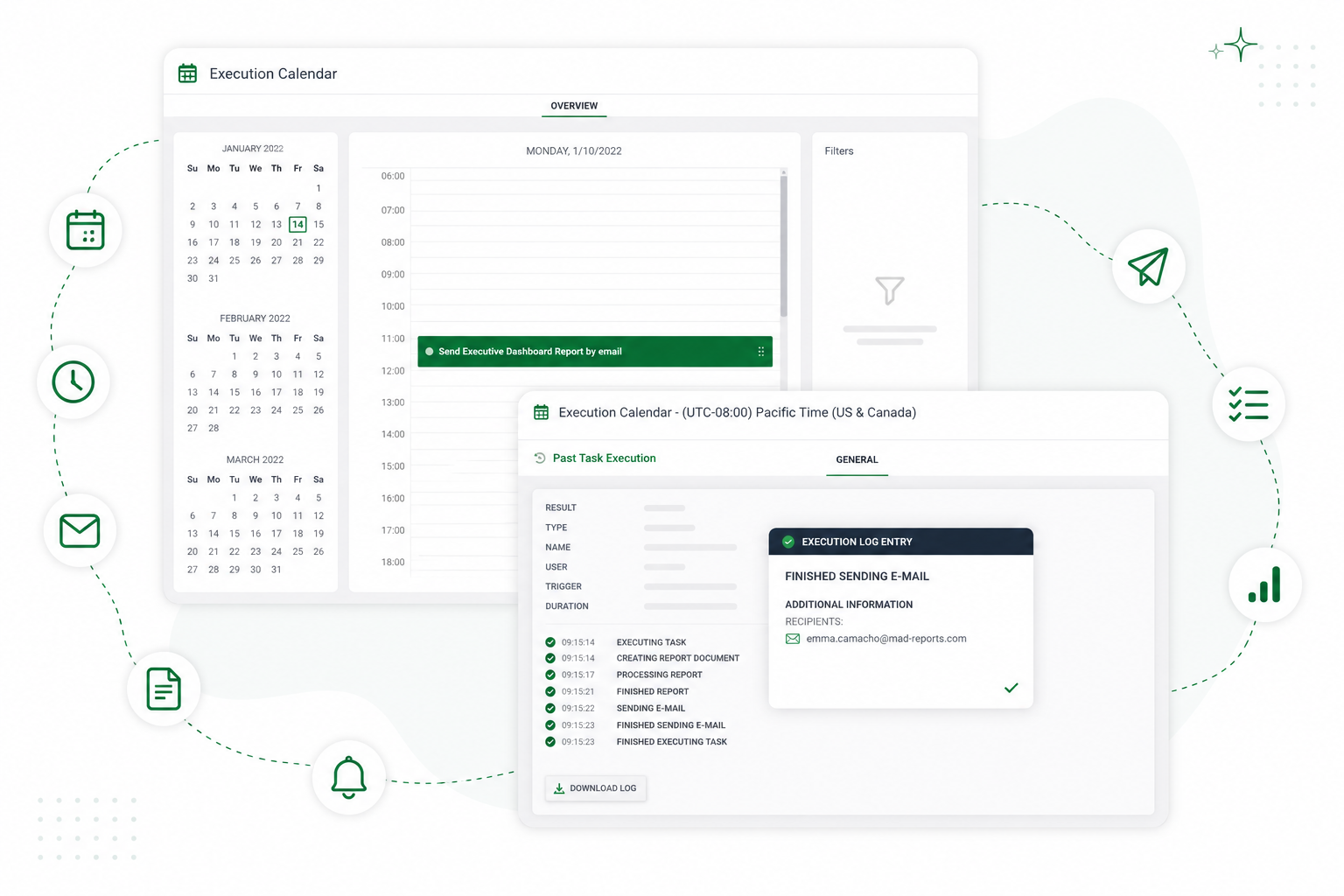
Reports run on a schedule - daily, weekly, on the first working day of the month, at a fixed time in a fixed timezone. Execution tasks run in parallel, so a large distribution finishes inside a delivery window rather than trickling out over hours.
In Qlik, a report can also be triggered from the reload script: code inserted into the script starts the report task once the reload reaches that point.
Deliver and prove it arrived
Delivery goes to email, file server, FTP, Microsoft SharePoint and Teams, OneDrive, Dropbox, AWS S3, Google Drive, or the Mail & Deploy Hub, where recipients pull reports themselves and subscribe to the ones they care about. The full list is on the delivery and integration overview.
Every execution is logged: what ran, what it produced, where it went, and what failed. For audit-relevant reporting, that log is usually the reason the reporting layer moves out of a scheduled script in the first place.
Extensions and custom objects
Third-party and stock Qlik objects render into reports instead of appearing as blank boxes. Supported vendors include Vizlib, AnyChart, ks quadrat, trueChart and the Qlik bundles. See the documentation for the complete list.

Qlik stock objects
Qlik Dashboard & Visualization Bundle

Vizlib
AnyChart
ks quadrat

trueChart

Inphinity
Community and Developer Garden objects
All of these render into reports as graphics or tables.
The full table, including export remarks per object, is maintained in the Qlik Sense datasource documentation. Missing an extension? Write to info@mail-and-deploy.com and we will check it.
What you need in place
- Mail & Deploy edition
- Most setups start with the Standard edition. Which one fits depends on how many recipients you deliver to, how complex the reports are, and whether you use scheduled distribution and self-service. Fifteen minutes on a call settles it faster than a table. Compare editions.
- Requirements
- Current hardware, software and network requirements are maintained in the documentation. View requirements.
- Permissions
- Mail & Deploy sees what the connecting identity sees. For bursting from QlikView, a service account with ADMIN section access. For self-service, impersonation via JWT so each user's section access applies.
- QlikView deployment
- QlikView connections require the on-premise edition. They are not available in SaaS.
Details per edition are listed under editions and licensing. If any of these are unclear for your environment, ask us - it is usually a quick answer, not a procurement decision.
Mail & Deploy for Qlik
Product Factsheet
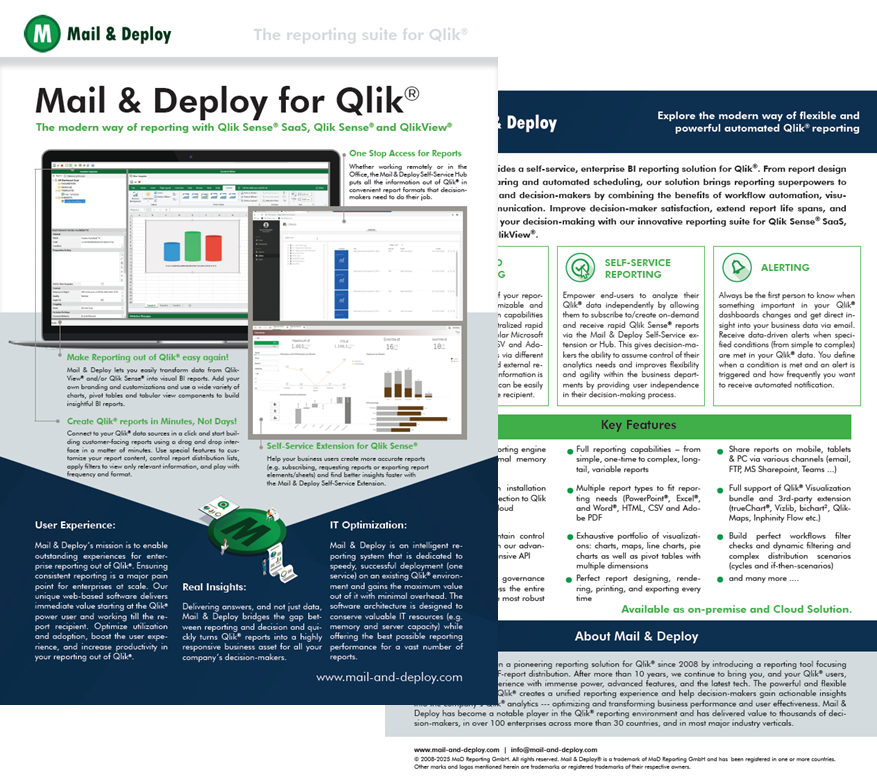
Explore the key features, benefits and capabilities of Mail & Deploy for Qlik. Learn how to automate reporting, distribute information and empower users with self-service reporting.
A worked example
- Source
- Qlik Cloud app "Sales Analysis"
- Template
- Excel, corporate layout, formulas retained
- Burst on
- Region → 18 outputs
- Filter
- current month, region-specific
- Schedule
- first working day, 06:00 CET
- Delivery
- email to regional manager · copy to SharePoint
- Log
- 18 generated · 18 delivered · 0 failed
Frequently asked questions
Reporting from a database or warehouse works the same way — see how it works for SQL, Snowflake and BigQuery →